Windows
Windows 10/11 · 64-bit

QCopilotsInside QGIS
QCopilots adds an AI assistant to QGIS. Describe what you need, and it loads data, runs analyses and lays out maps in your open project. Each step shows in the chat, and layer edits wait for you to save them.
Features
Describe the task the way you would tell a colleague. QCopilots works out which QGIS tools to use.
It loads files and web basemaps, zooms, selects features, adds labels and applies saved styles in the QGIS you already have open.
It runs QGIS processing tools, from buffers and reprojection to route finding, as background jobs you can follow.
Build a print layout with a title, legend and scale bar, then export it as PDF, PNG, JPEG or SVG.
The chat lists each step it takes. Layer edits wait for you to save them, and removing layers or replacing files is previewed first, then confirmed in a separate step.
Run the model on this computer, or on a server or workstation your team shares. Connect it by entering its web address in the QCopilots menu.
Examples
A few things you can ask. Each one works on the data in your project.
You say
Shade the German states in 5 classes by area and label them by name.
It does: Colors the states from light to dark and labels them, so the differences show at a glance.
You say
Load an OpenStreetMap basemap and zoom to my parcels.
It does: Adds the web basemap and frames your data.
You say
Make an A3 landscape layout with a legend and scale bar, then export a PDF.
It does: Builds the print layout and saves the PDF where you choose.
You say
Label the roads by name.
It does: Sets up labels on the roads layer from its name field.
You say
Reproject this elevation raster to the project coordinate system.
It does: Runs the reprojection in the background and adds the new raster.
You say
Package these layers into one GeoPackage.
It does: Gathers the selected layers into a single file you can pass on.
A real run
Real screenshotsUsing the sample world map that comes with QGIS, we asked QCopilots to pick out Germany’s states, work out their areas, turn them into a shaded map and export it, then answer a question. The model ran on another computer, connected through the QCopilots menu.
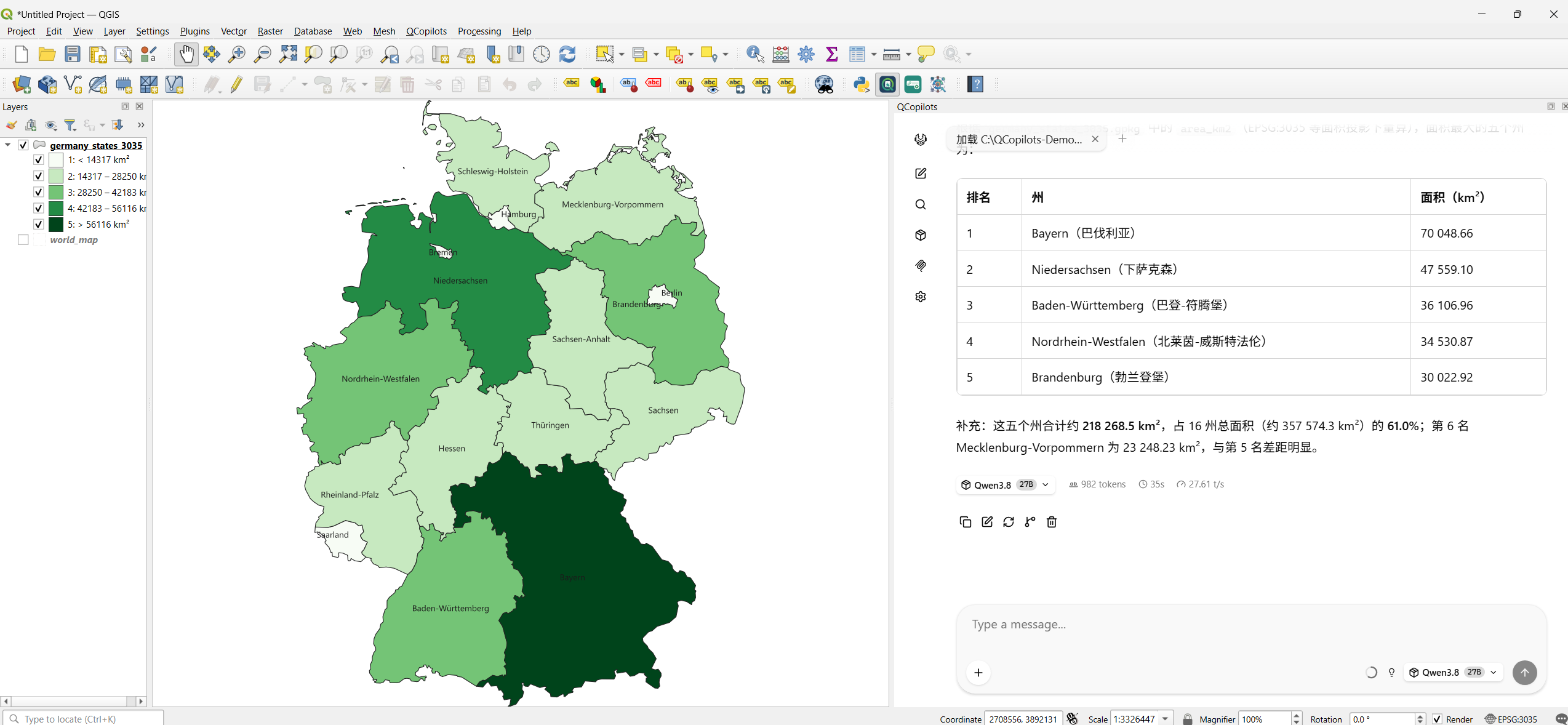
Load states_provinces from C:\QCopilots-Demo\data\world_map.gpkg , keep only the 16 states whose admin is Germany, reproject them to EPSG:3035, and add an area_km2 field with the area of each state in square kilometers.Shade the states in 5 classes by area_km2 with a green gradient, label each state with its name, and zoom to the layer.
Make an A4 portrait map titled ‘Area of German states’ with a legend and scale bar, and export it as PDF and PNG to C:\QCopilots-Demo\output\zh .Which five states have the largest area? How many square kilometers is each?
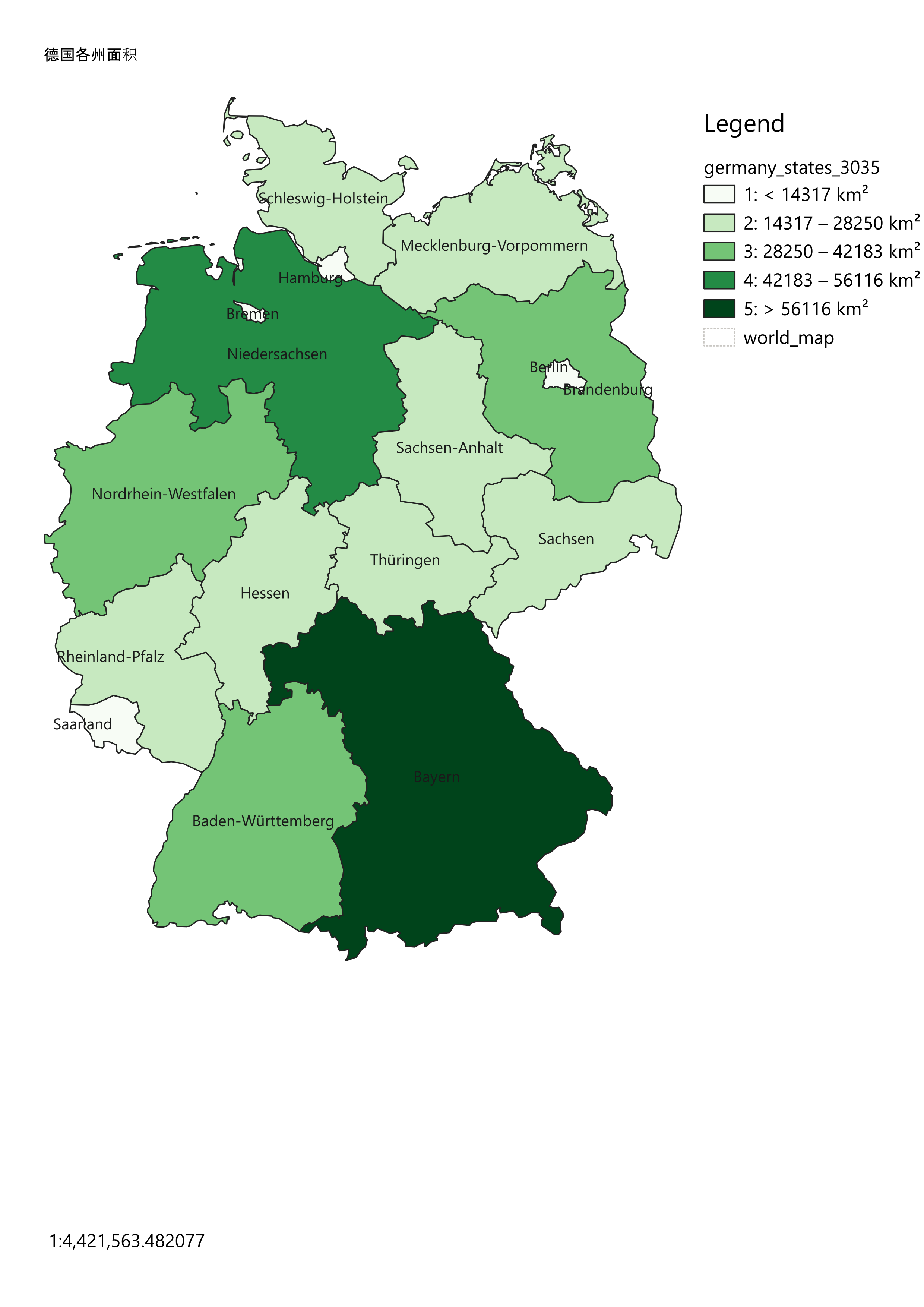
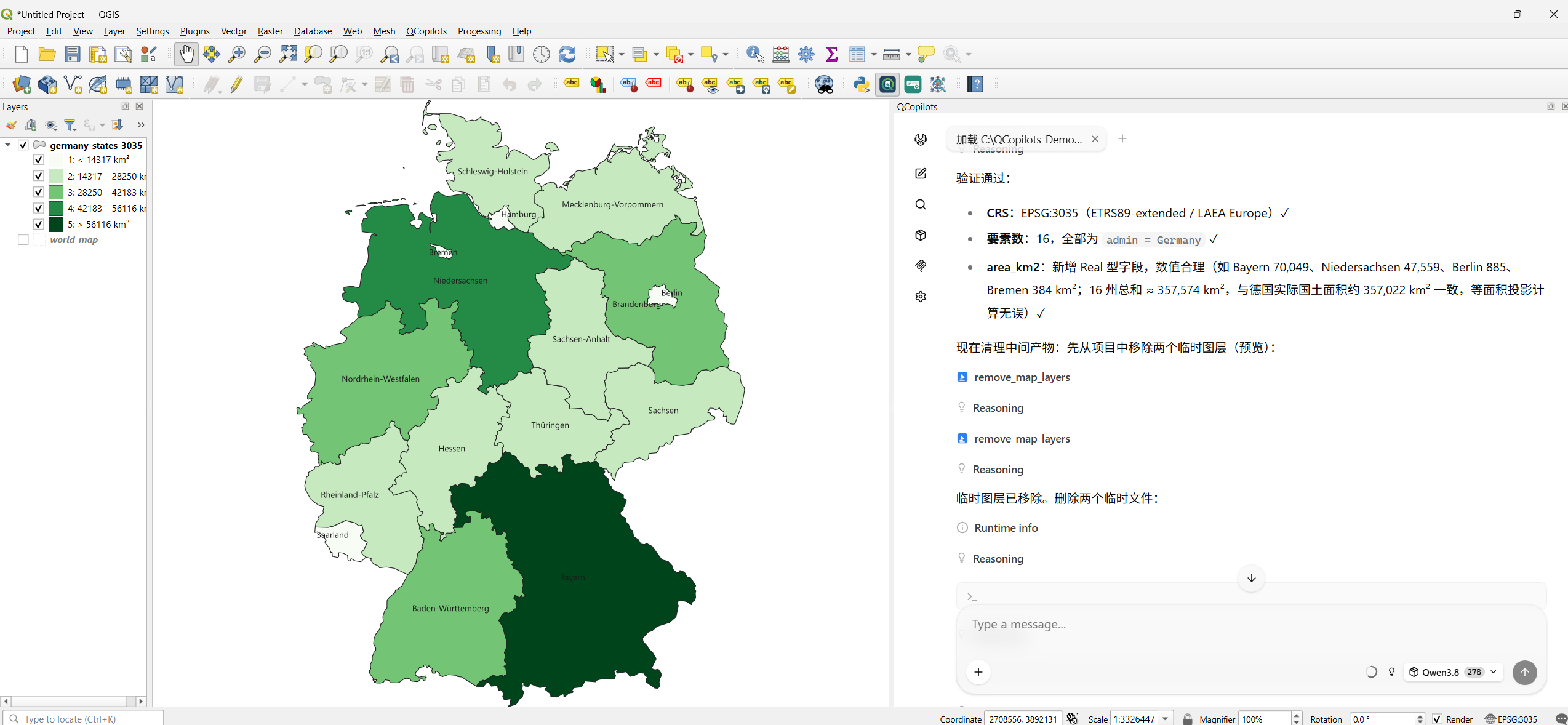
The data is Natural Earth, from the sample world map that comes with QGIS (public domain). Its borders are generalized, so the areas differ slightly from official figures. Screenshots are shown at full resolution, unedited.
Counts come from the current development build. Available algorithms depend on your QGIS installation.
How it works
The model service can run on a server or workstation, or right on this computer. Open QGIS, choose QCopilots → Configure QCopilots URL and enter the model’s web address. QCopilots sits in a panel beside your map.
Type a request and watch each step it takes in the chat. Review and adjust whenever you like.
Check the result on the map. Save the edits you want, or ask for changes.
Privacy
QCopilots sends your conversation, and the data the assistant reads, only to the model service you choose. Its map tools always run inside your own QGIS.
Run the model on this computer or on a server you trust. Conversations go only to the web address you entered in the QCopilots menu.
The tools that load data, run analyses, edit layers and export maps work inside your QGIS and are not open to the network.
Layer edits wait for you to save them. Replacing an existing output file takes a separate confirmation step.
When the model runs on another device, your conversation and any data the assistant reads from your layers and files travel over the network to it. Use a model service you trust.
QCopilots is QGIS, the free and open-source map software, with an AI assistant built in. You describe a task, and the assistant carries it out with QGIS tools while you watch each step.
It helps, but you do not need to know tool names. Ask in everyday language and QCopilots shows each step it takes, which is also a good way to learn QGIS.
Wherever suits you: on a server or workstation, or right on this computer. Either way, choose QCopilots → Configure QCopilots URL in QGIS and enter the model’s web address. If you need help setting it up, email us.
It can edit layers when you ask, but edits are held until you save them. Removing layers and replacing existing outputs are previewed first, then confirmed in a separate step. It can also read and write files and run commands, so use it on data you have backed up.
Yes. Review outputs against your data, coordinate system and goals before you rely on them. QCopilots moves the work forward, and the judgment stays yours.
QCopilots for Windows 10 and 11 is being prepared, and the download will appear on this page when it is ready. To try it sooner, email us to request early access.
Download
The Windows release is being prepared, and the download will appear here when it is ready.
Windows 10/11 · 64-bit
Want to try it before release? Request early access